Introduction to Brackets
Brackets is a modern, lightweight text editor that’s been built from the ground up for web designers and front-end developers. We’re going to use Brackets to edit our project files as it has a great connection with Google Chrome and it allows us to easily preview our project as though it were hosted on a live website with a single button press.
If you haven’t installed Brackets yet, see the Required Software Page for details on where you can download and install Brackets.
Getting Started
Brackets allows you to open up an entire folder of files and then access the files in your project all from within Brackets. Once you have created a folder or git repository where you want to create your project, you just need to click ‘File’ -> ‘Open Folder…’ in the Brackets menu to open your project for editing.
Brackets Overview
Once you’ve opened up your project in Brackets, you should see the following.
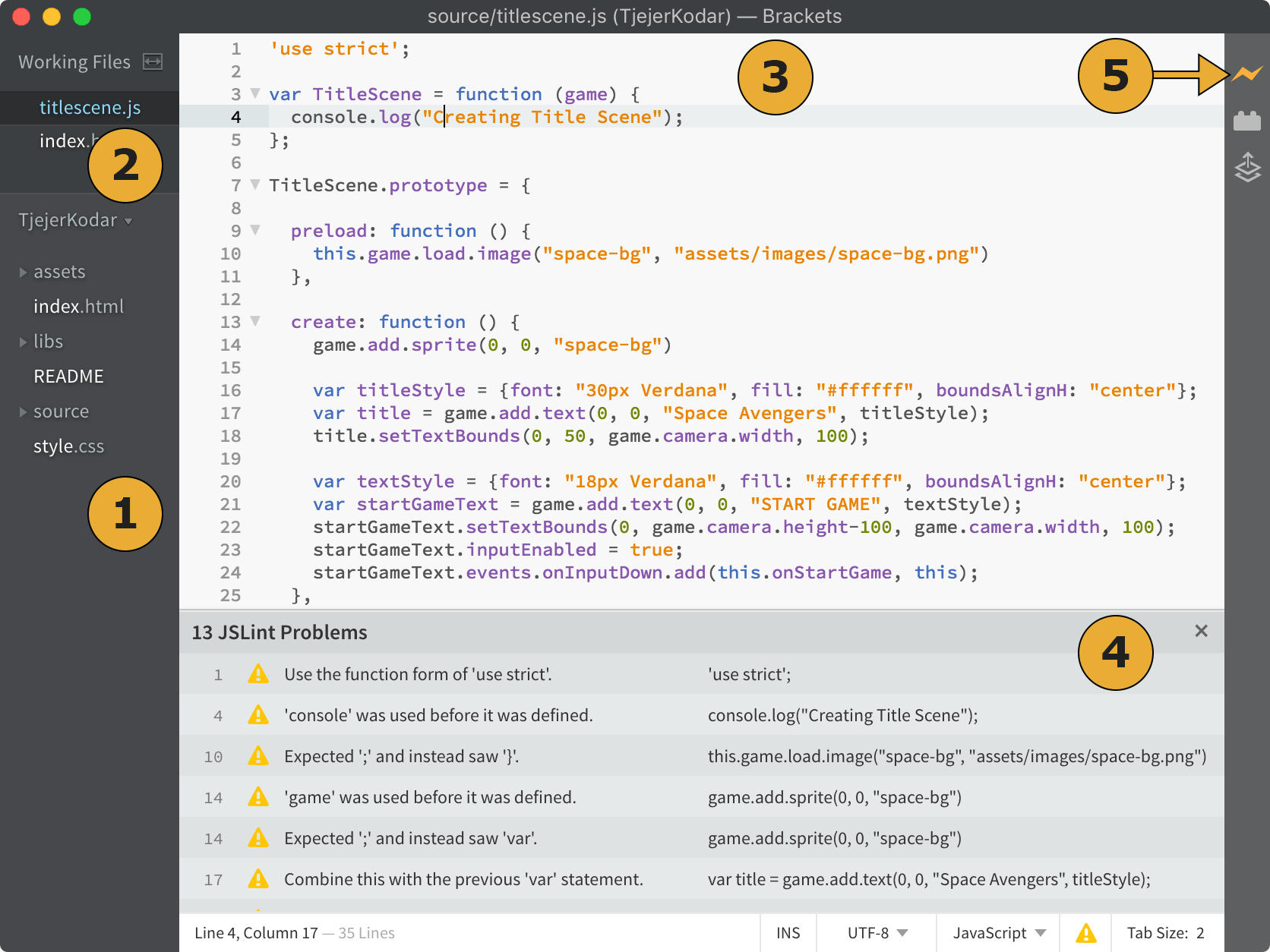
-
Project Files: Here you can see all of the files/folders in your project. If you want to add a new file to your project, you can right click anywhere on this panel and select “New File” or “New Folder” from the pop-up menu.
-
Working Files: These are the files you currently have open for editing. Clicking the cross to the left of an open file will close that file (but not delete it).
-
Text Editor: This area shows you the text in the file you currently have open. It will colour the text (also known as ‘syntax highlighting’) in a way that makes it easier to spot mistakes.
-
JSLint Problems: This panel aims to help you write better JavaScript. It’s very picky though to start with so you can dismiss / ignore it if it pops up during this course while we focus on more important things.
-
Live Preview: This button is incredibly useful for us! It will open up the current project in Google Chrome and let you preview your game. What makes Brackets special is that “Live Preview” actually runs a tiny web-server on your computer and the page you see in Google Chrome will look exactly the same as it will when published on the web.
Why Live Preview?
You might be wondering why we have chosen Brackets for this course and why you cannot simply open the HTML file straight from your hard-drive in your browser like with a standard website.
Well, the problem comes with trying to load images and audio using JavaScript. For security reasons, JavaScript isn't allowed to open files like images and audio (or password files etc) straight from your computer. This is so that people can't write viruses hidden in innocent looking HTML pages that you might download from the internet.
To combat this, Brackets comes with a built-in web-server which basically makes a folder on your machine act like a live website. By setting up a local website from a specific folder on your drive, you are able to view your project in a web-browser as though you were browsing it over a network connection. JavaScript can then access files that live in the folder by making network requests to the web-server running on your machine. The web-server then gives the images and audio files back to your game as though it loaded them from the internet.
By clicking the 'Live Preview' button in the top right of Brackets, it starts the built-in web-server using your project folder as the 'web site'. From there, it will then launch Chrome automatically with the special address required to load your project.