JavaScript: Arrays
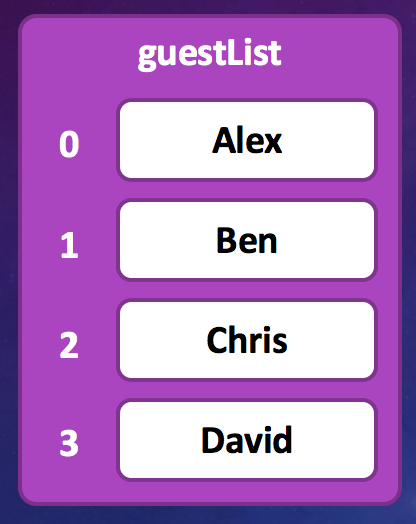
Arrays are essentially lists of information. Examples of things you might store in an array are;
- A music playlist.
- The top 10 scores in your game.
- The names of people allowed into a club.
Arrays are special variables (also known as ‘lists’ in some other languages) which are often called containers because they contain a number of items inside them. In the same way that a string contains a list of characters - an array stores a list of objects. The main difference is that an array can store any type of variables/objects and not just characters.
Just like strings, the order of the items stored in an array is retained. ie. If you create an array containing 3 names and then add a forth name. The forth name will always appear at the bottom of the list and the other 3 names will stay in the same order you added them.
Similar to strings, you can count the number of elements in an array, add new elements anywhere in the list and remove elements from any position too. Arrays also have methods (functions) that allow you to do other special operations easily too - such as sorting a list of numbers or reversing the order of all elements in a list.
Note: It’s also possible that an array is currently empty! In this case, it doesn’t contain any items at the moment, but you can add more later.
Declaring an Array
Declaring an array is done by using square bracks to contain the list of variables you want to store in an array;
var fruits = ["Apple", "Orange", "Banana", "Peach"];Accessing Array elements
It’s possible to access elements in an array using square bracks after the array name, followed by a number which determines which element in the array that you want to access. The following code shows how you could print out the name of the first fruit in the list.
var fruits = ["Apple", "Orange", "Banana", "Peach"];
console.log(fruits[0]);     // Prints "Apple"
One thing you will notice from the above code is that the number ‘0’ appears in the square brackets. Most programming languages use zero indexing when accessing items in an array or list and this means that the first item in the list has index 0. This means that if you wanted to access all 4 members of the array of fruits, you would use values 0, 1, 2 and 3. As shown below;
var fruits = ["Apple", "Orange", "Banana", "Peach"];
console.log(fruits[0]);     // Prints "Apple"
console.log(fruits[1]);     // Prints "Orange"
console.log(fruits[2]);     // Prints "Banana"
console.log(fruits[3]);     // Prints "Peach"

// The following line will cause an error, as there are only 4
// items in the fruits array and 'index 4' would refer to item 5.
console.log(fruits[4]);     // Causes an error!
This might seem strange at first, but there are a number of reasons why some older languages prefer using zero to access the first element. For a little glimpse into why this is the case, you can read the spoiler below;
One of the main reasons zero-indexing is popular is because of how lower-level languages handle variables and blocks of memory. You can think of the array index as "how many spaces do I need to move past the first element to get what I want". ie. If you think of the variable fruits as a pointer to the first element in the list ("Apple") then the index tells you how many steps you need to make past that to get the item you want. Zero steps means you get 'Apple', 2 steps means you move over orange and get 'Banana'.
Basic Array Operations
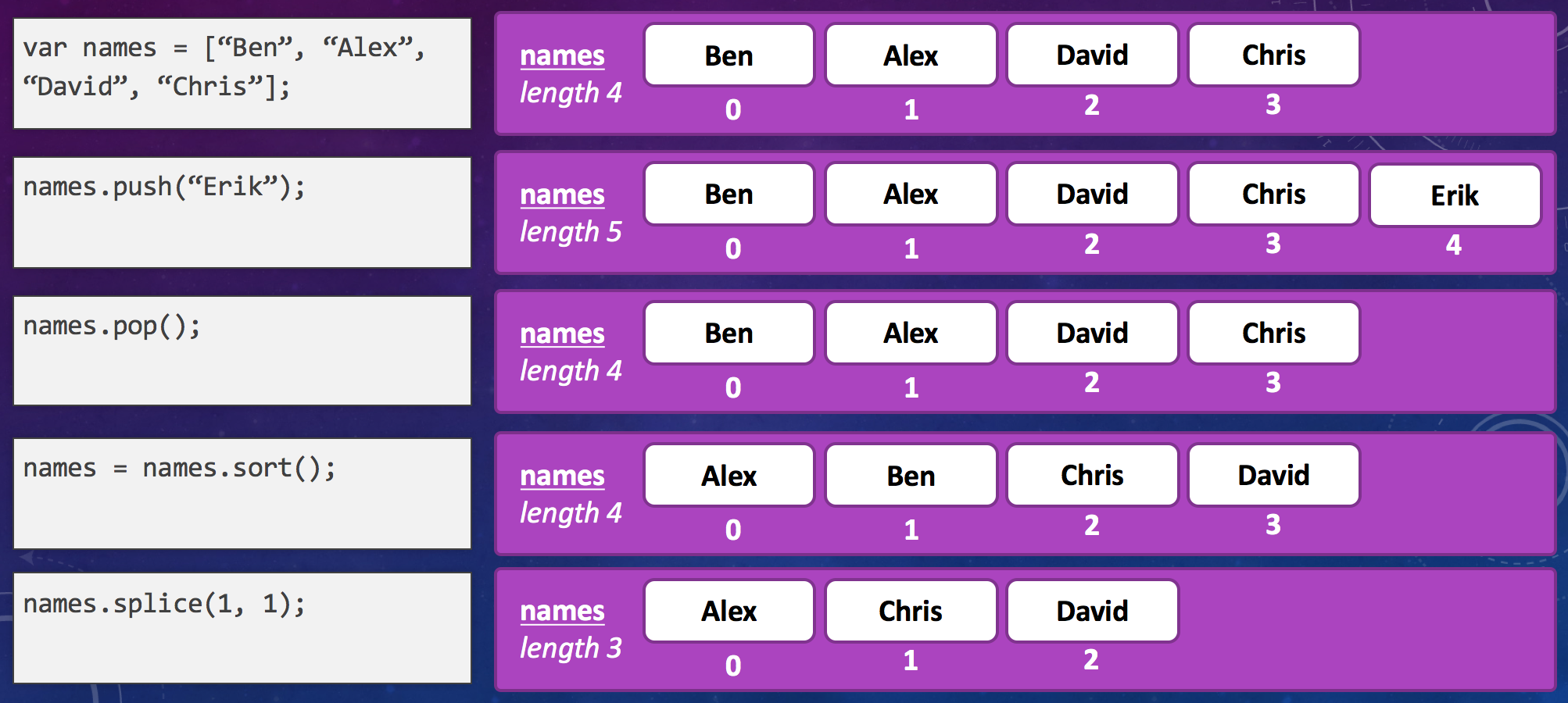
The following image presents some of the basic operations you can perform on arrays that you have created.
More Examples
Some more examples of the actions that you can perform on an array are shown below.
var fruits = ["Apple", "Orange", "Banana", "Peach"];

var numberOfFruits = fruits.length;
console.log(numberOfFruits);        // Prints '4'

var firstFruit = fruits[0];
console.log(firstFruit);            // Prints "Apple"

var lastFruit = fruits[fruits.length - 1];
console.log(lastFruit);             // Prints "Peach"

fruits[0] = "Kiwi";                 // Replaces 'Apple' with 'Kiwi'
console.log(fruits);                // Prints "Kiwi,Orange,Banana,Peach"

fruits.splice(0, 1);                // Removes the first item
console.log(fruits);                // Prints "Orange,Banana,Peach"

fruits.push("Blueberry");           // Adds (pushes) 'Blueberry' to the end of the list
console.log(fruits);                // Prints "Orange,Banana,Peach,Blueberry"
Reference
The following chart shows some of the most useful properties and methods you can use to interact with arrays. For a full list of methods you can call on an array, see the methods section of the Mozilla Technical Documentation on Arrays.
| Method / Property | Description |
|---|---|
| array.length | Returns the number of items in the array. |
| array.push(val); | Adds the given value(s) to the end of the array. |
| array.pop(); | Removes (and returns) the last value in the array. |
| array.join(“, “); | Returns a string containing each item in the array joined together with the provided string. |
| array.reverse(); | Reverse the order of each item in the array. |
| array.sort(); | Sort the items in the list - either numerically or alphabetically. |
| array.shift(); | Removes (and returns) the first element from the array. |
| array.unshift(val); | Adds the given value to the beginning of the array. |
| array.splice(a, b); | Remove ‘b’ items from the array, starting with the item at position ‘a’. |
| array.includes(val); | Returns true if the array includes an item which is an exact ‘==’ match with ‘val’. |