Basic Player Ship
We’re now going to build upon the previous lesson and use the skills we have learned to add the player’s space ship to the game. Adding the player ship is similar to adding the background image, but this time we’re adding something much smaller. A small image which makes up part of a game is typically called a sprite.
In the previous lesson we mentioned that the game world is almost like a table with lots of pieces resting on top of it. Consider the game’s co-ordinate system against while completing this task;
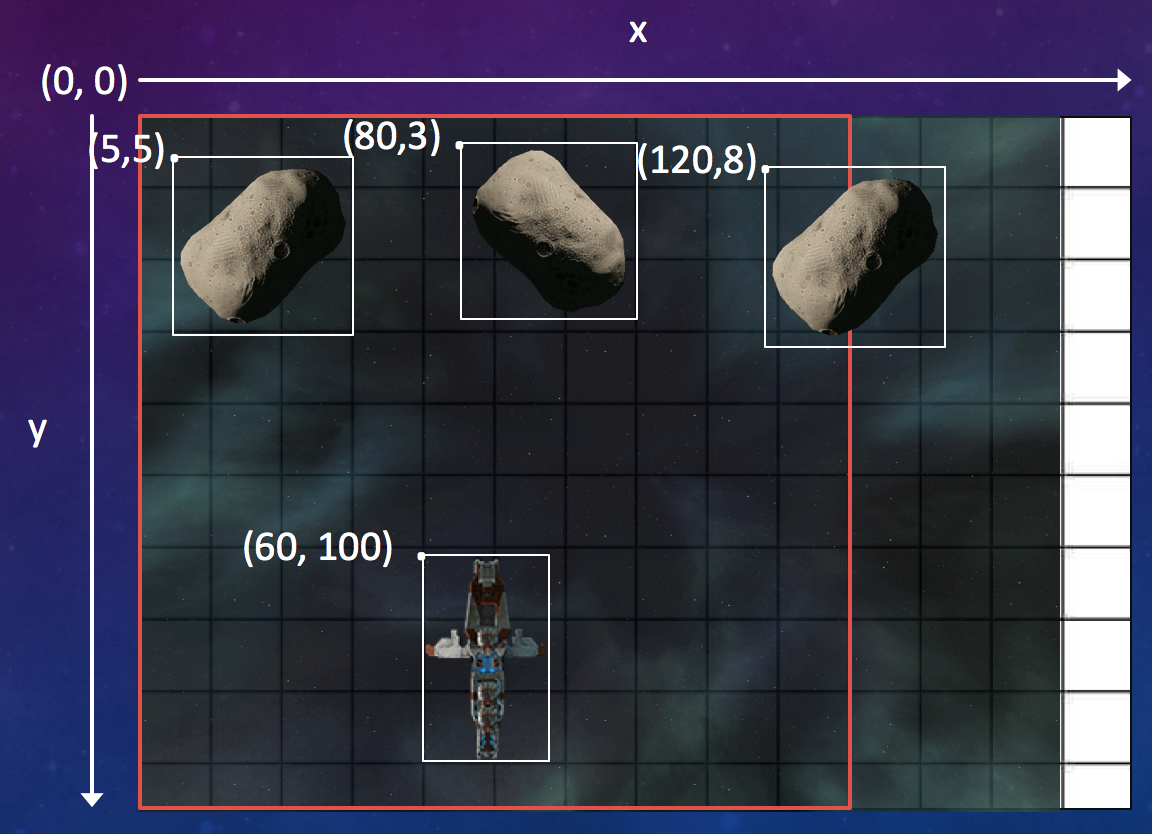
Task Definition
Based on the learnings from the previous stage, you should go through the following steps to add the basic player ship to the game. It won’t be able to move yet, but you should try to just place it in the middle-bottom of the screen for now.
- Add the image file itself to your project folder as assets/images/player-ship.png.
- Load the image in your preload function using game.load.image().
- Add the image to your stage/world. You can calculate how to place it in the middle-bottom of the stage using game.width and game.height.
- You will need to store the created sprite in a variable so that you can set it’s anchor position using this.playerShip.anchor.setTo(0.5, 0.5).
Walkthrough
1. Add the image to your project
If it’s not already there, copy the image player-ship.png from the asset pack and add it to your game as assets/images/player-ship.png.
2. Preload the Image
Preload the image in your preload function like you did with the background image. You will need to use game.load.image(); to load the image.
mainGameState.preload = function() {
    ...
    game.load.image("player-ship", "assets/images/player-ship.png");
}
3. Create the Sprite
Add the sprite to the game world like you did with the background image. Instead of setting the position as 0, 0 (which is the top left of the screen) - you want to create the sprite in the middle bottom of the screen.
Tip. You can get the width and height of the game window using the following properties game.width, game.height. Using these properties you can calculate the x any y co-ordinates where you want to place the sprite.
Unlike the background image we also need to keep a variable around so that we can access the player ship in the future (to move it around etc). With the background image, we really didn’t care if we couldn’t access it later - Phaser will take care of it for us. This time however, we want to keep a variable on the mainGameState object which keeps track of the player ship for later use.
You will need to add something like the following to your create function…
    var x = game.width * 0.5;
    var y = ...;

this.playerShip = game.add.sprite(x, y, "player-ship");mainGameState.create = function() {
...
var x = game.width * 0.5;
var y = game.height * 0.9;
this.playerShip = game.add.sprite(x, y, "player-ship");
}Try running the game after this point and you will notice that your player ship isn’t quite in the middle of the screen - grrr!
4. Set the Sprite Anchor
In the image above, you can see that co-ordinates for your sprite are based on the top-left point of the sprite. By default, whenever you position a sprite – the position you set determines exactly where the top left point on the sprite will end up.
This is fine for the background image but kinda sucks for the player ship. If you want to place the player ship in the exact middle of the screen it’s more convenient if you can just set the position and have the middle of the sprite move to that position. Fortunately - this is what the ‘anchor’ property is for!
The anchor position determines which part of the image should line up with the co-ordinates we use to describe where the sprite is. For most in-game sprites you want the anchor point to be the centre of the sprite. The anchor point goes from (0,0) [top left] to (1,1) [bottom right]. To set it to the middle, we want to set it to (0.5, 0.5).
this.playerShip.anchor.setTo(0.5, 0.5);Experiments
If you have some time spare, why not try these experiments to better understand what’s happening inside of phaser;
- Try changing the anchor point value and see what happens.
- Try changing the this.playerShip.scale property and see what happens.
- Try changing the this.playerShip.angle property and see what happens.
- If you don’t like the player ship we’ve used in this game - why not use Google Images to something a bit more stylish!
Potential Solution
var mainGameState = { }

mainGameState.preload = function() {
    console.log("Pre-loading the game!");
    game.load.image("space-bg", "assets/images/space-bg.jpg");
    game.load.image("player-ship", "assets/images/player-ship.png");
}

mainGameState.create = function() {
    game.add.sprite(0, 0, "space-bg");

    var shipX = game.width * 0.5;
    var shipY = game.height * 0.8;

    this.playerShip = game.add.sprite(shipX, shipY, 'player-ship');
    this.playerShip.anchor.setTo(0.5, 0.5);
}

mainGameState.update = function() {

}