World Background
The first thing we are going to add to our game to set the context is a background image. You can’t have a game set in space without an image of space in the background! Phaser manages a scene or a stage for us which is called the ‘world’. We can place images in this world and move them around and Phaser will handle most of the hard work for us.
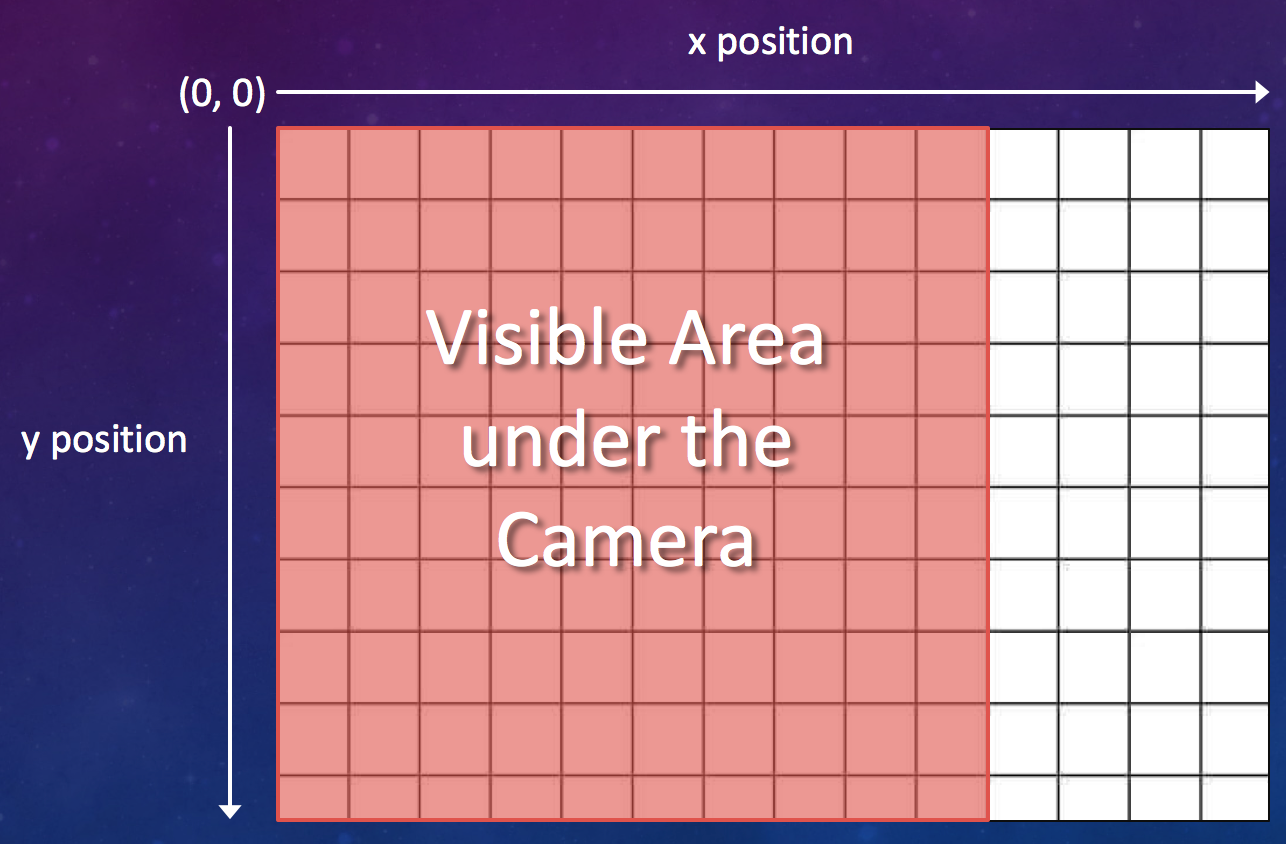
The “game world” can be thought of as one massive canvas (infinite) with lots of pieces of cardboard on which we can move around. All we need to do is tell phaser where the images we want to draw exist in the world, and Phaser will draw them for us. While the canvas is infinite, we can only see a small part of it at once (the part under the camera, or the part which fits into our game window).
If you haven’t already, you should download the Space Avengers Asset Pack now.
Task Definition
In the Asset Pack is an image named ‘space-bg.jpg’ which we will be using as the background image for our space environment. You will notice that this image is very large (larger than the area you can see at any one time), this is because you might decide later to add a camera system to your game as a bonus quest - and if the camera moves, you still want to see the background!
The overall steps for completing this task are as follows;
- Adding the image file to the assets folder in your project.
- In your preload function load the image into memory using the function game.load.image(name, path);. This will load an image from a given path and give it a convenient name you can use to refer to it later.
- In your create function add the sprite to the stage / game world using game.add.sprite(x, y, name);. This will add the sprite to Phasers game world at the given x,y co-ordinates.
Walkthrough
The following steps will walk you throgh the process of this task.
1. Adding the Image to your Project
The first step to getting our beautiful space image as the background to your game is to get the image file into your project folder. We can only access files that are packaged into your project from the game itself, so you should copy the file into your project folder. It’s good to keep all of the images together, so I suggest placing it at the following path;
assets/images/space-bg.jpg
2. Pre-loading your Asset
Before you can start drawing your background on the screen you need to load the image into your game. Players visiting your game via a website URL will first download the HTML and CSS files that wrap around your game. Once they have downloaded, their web-browser will see that you have links to JavaScript files in the header and load those in too. Soon after, your game will start, but at this point the user’s browser has no idea what images and audio files make up your game.
Because you don’t want the game to stall and wait every time a new image is required - it’s typical in all games to “preload” assets before you need to use them. This is often done during a “loading screen” or during start-up. While we won’t have a loading screen in our simple game, we will still load everything at start up so that the game itself runs smoothly (even if that means it takes a few seconds to start).
You might remember from the previous stage that we setup an empty Scene that doesn’t do anything at all yet. It should look something like this;
var mainGameState = { }

mainGameState.preload = function() {
    console.log("Pre-loading the Game");
}

mainGameState.create = function() {

}

mainGameState.update = function() {

}
If you need a reminder for what each of these functions is intended for, see the Phaser States page. At this stage though, we will be using preload to load the space image into the game.
mainGameState.preload = function() {
    console.log("Pre-loading the Game");
    this.game.load.image("space-bg", "assets/images/space-bg.jpg")
}
In our Phaser boiler plate code in the previous step, we created a global variable called ‘game’. As we created this variable as a global variable, we can access it from anywhere in our scripts. The game object is an instance of the Phaser.Game class which is basically an object which contains all of the logic that Phaser provides. Generally, any time we need to interact with the Phaser game framework, we will start with this variable.
As you can probably guess from the code, the game.load.image(name, path) function loads an image for the game to use later. This function takes two parameters name and path.
- name: Every asset you load into your game is given a friendly name which is different to the path from where you loaded the file. You will use this name later when you tell the game which image you want to draw instead of the file path. This is really convenient if you decide you want to swap an image later on - you simply need to change the path for the image but keep the same name, then you don’t need to change all of the bits of code elsewhere where you create a sprite using this image.
- path: This is the path of the files where it exists in your project. It should match up with the file that you can find in the project browser in Brackets.
With your updated preload function in place, you should be loading the image into your game so now it’s time to put it into the world.
3. Space, the Final Frontier…
Last but not least, we need to actually add the background image to the game world. One way to think of the game world in Phaser (or many 2D game engines) is to consider the world as a big, board game table. To start with, there is nothing on the table at all - it’s just black empty space. When you create a scene in your game, you can add things to that table - stacked in the order you put them on the table.
For instance, for your space game - you might want to place a big picture of space at the bottom later. On top of that, you will add smaller tokens / images, such as space ships and asteroids. Once you have added these objects to the table, you can move them around by altering their position (and even switch around the order they are stacked on top of each other).
In your scene’s create() function you will typically add everything to your world that you want to appear when the game starts. You will continually add and remove tokens from the world as the game progresses - creating new asteroids and removing destroyed enemies, but the create function is a great place to add things that you know should always exist, such as the space background.
In your create background, you can add an image using the following code;
mainGameState.create = function() {
    game.add.sprite(0, 0, 'space-bg');
}
The game.add.sprite([x], [y], [imageName]); function adds a single image to the world (typically known as a ‘sprite’). When we call the function above, we add the space background at position “0,0” on the table (the top left of the world). We also need to provide the name of the image that we loaded earlier.
Extensions
Here are some experiments for you to try out when you’ve finished this task;
- Try passing different x,y co-ordinates to the game.add.sprite() function call and see what happens.
- Try printing out the amount of time that has elapsed in the current game to the console using game.time.totalElapsedSeconds(). Notice it will continue to increase every frame.
- Try printing out the size of the game canvas to the console using game.width and game.height.
Solution
If you’re running into any problems getting your space image on the screen, you can grab the solution from the spoiler below and see how your solution is different to ours.
Tip: Check your Google Chrome JavaScript Console for errors before resorting to checking the solution!
var mainGameState = { }

mainGameState.preload = function() {
    console.log("Pre-loading the Game");
    game.load.image("space-bg", "assets/images/space-bg.jpg");
}

mainGameState.create = function() {
    game.add.sprite(0, 0, 'space-bg');
}

mainGameState.update = function() {

}